How to Make a Modpack in Modrinth
A screenshot-driven walkthrough for building your own Minecraft: Java Edition modpack in the Modrinth App — choosing a modloader, adding mods and shaders, tuning RAM, fixing crashes, and exporting an .mrpack your friends can install in one click.
By Vanilama · Updated
Short answer
- Install the Modrinth App and sign in with your Microsoft account.
- Click Create new instance and name your pack.
- Pick a Minecraft version and one modloader — Fabric, NeoForge, Forge, or Quilt.
- Open the instance → Install content → add mods, shaders, and resource packs.
- Set RAM in the instance options, hit Play, then Export an
.mrpackto share.
Total time: about 15 minutes for a first pack. Modrinth modpacks are Java Edition only.
Table of contents
- What is Modrinth?
- Before you start
- Choosing a version and modloader
- Step 1. Download & install
- Step 2. Sign in
- Step 3. Create the modpack
- Step 4. Add mods & shaders
- Starter mods worth adding
- Step 5. RAM & first launch
- Step 6. Export & share
- Using your pack on a server
- Updating without breaking things
- Troubleshooting
- FAQ
What is Modrinth?
Modrinth is an open-source platform and desktop launcher for Minecraft mods, modpacks, shaders, resource packs, and data packs. The Modrinth App handles the parts that used to be manual: it installs the modloader for you, filters every project to your exact Minecraft version, pulls in dependencies automatically, and keeps each pack in its own isolated instance so a broken mod can never affect your other worlds.
- Free and open source, with no download gates or ad redirects
- Automatic dependency installs and strict version compatibility filtering
- Supports Fabric, NeoForge, Forge, and Quilt
- One-click export and import of packs as
.mrpackfiles - Can also import CurseForge packs from a zip file
Official site: modrinth.com
Before you start
- A paid Minecraft: Java Edition account. The app signs in with Microsoft and verifies ownership. Bedrock, PS, Xbox, and Switch versions cannot use Java modpacks at all.
- Windows, macOS, or Linux. The app ships Java with each instance, so you do not need to install a JDK yourself.
- Free RAM. 8 GB of system memory is enough for a small pack; 16 GB is comfortable for 100+ mods with shaders.
- A few GB of disk space. Each instance keeps its own mods, assets, and worlds, so packs do not share files.
- A decision on version and loader. Changing either after you have installed 40 mods means redoing most of the work — see the next section.
Choosing a Minecraft version and modloader
Every mod is built for one Minecraft version and one loader. Mixing them is the single most common reason a first pack refuses to launch, so pick the combination your must-have mods actually support and build around it. If you are unsure, check the two or three mods you care about most and use whichever version they all share.
| Loader | Best for | Notes |
|---|---|---|
| Fabric | Performance packs, current versions | Lightweight and updates within days of a new Minecraft release. Needs Fabric API. |
| NeoForge | Modern content packs (1.20.2+) | The Forge successor most big content mods now target. Not compatible with Fabric mods. |
| Forge | 1.20.1 and older packs | Huge legacy library. Use it if a mod you want has not moved to NeoForge. |
| Quilt | Fabric packs needing extra tooling | Runs most Fabric mods and needs Quilted Fabric API instead of Fabric API. |
A practical tip: stay one or two Minecraft releases behind the newest one. Mod authors need weeks to update, and the version right after a big release usually has the thinnest selection.
Step 1. Download & install the Modrinth App
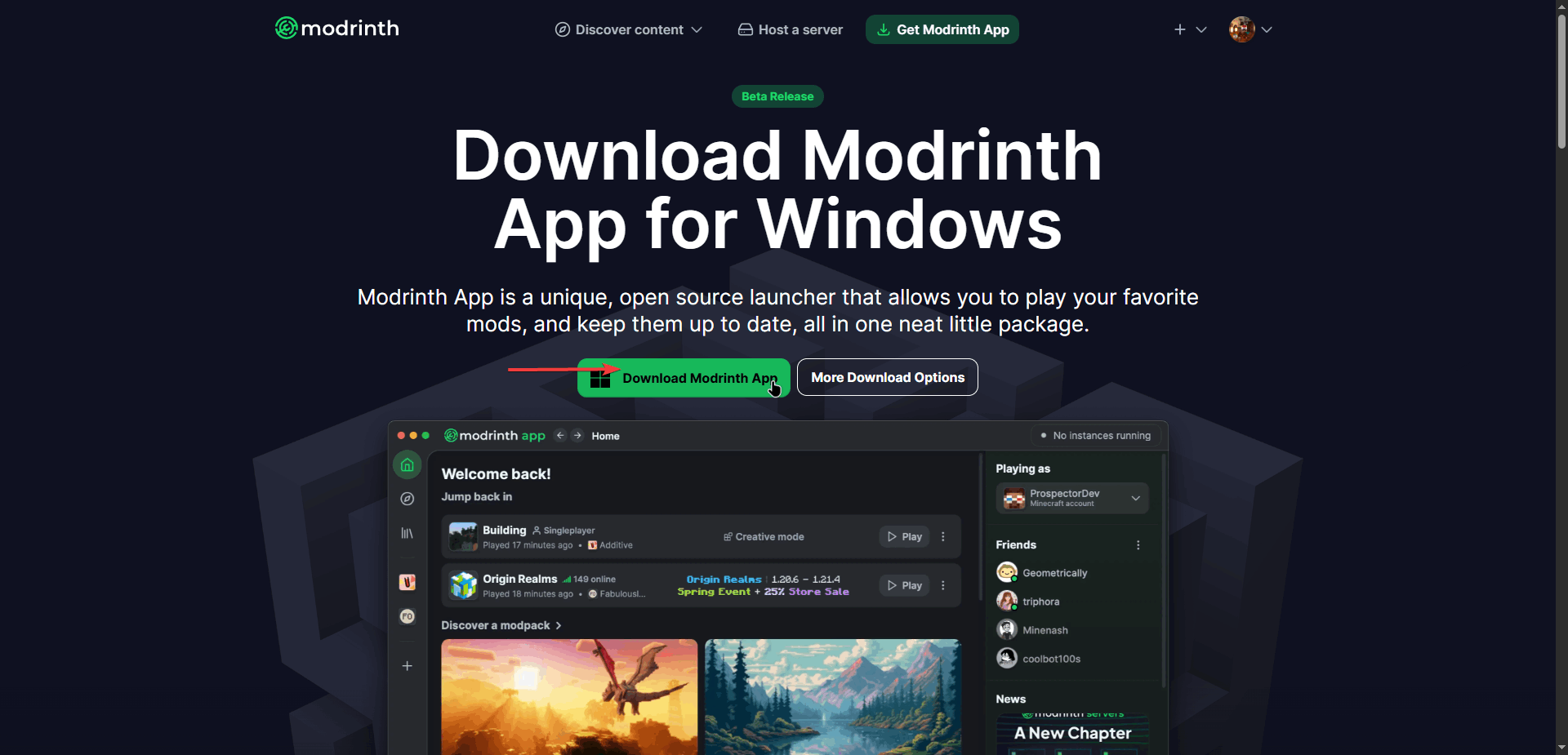
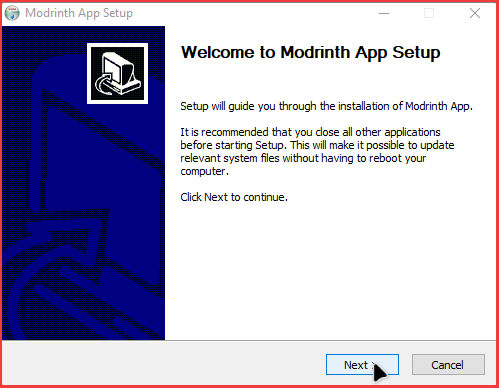
Grab the app from modrinth.com/app and run the installer. If Windows SmartScreen shows a warning, choose More info → Run anyway; the installer is unsigned on some builds. Keep the default install path unless you want instances on a different drive, which you can also change later in Settings.
Step 2. Sign in with your Microsoft account
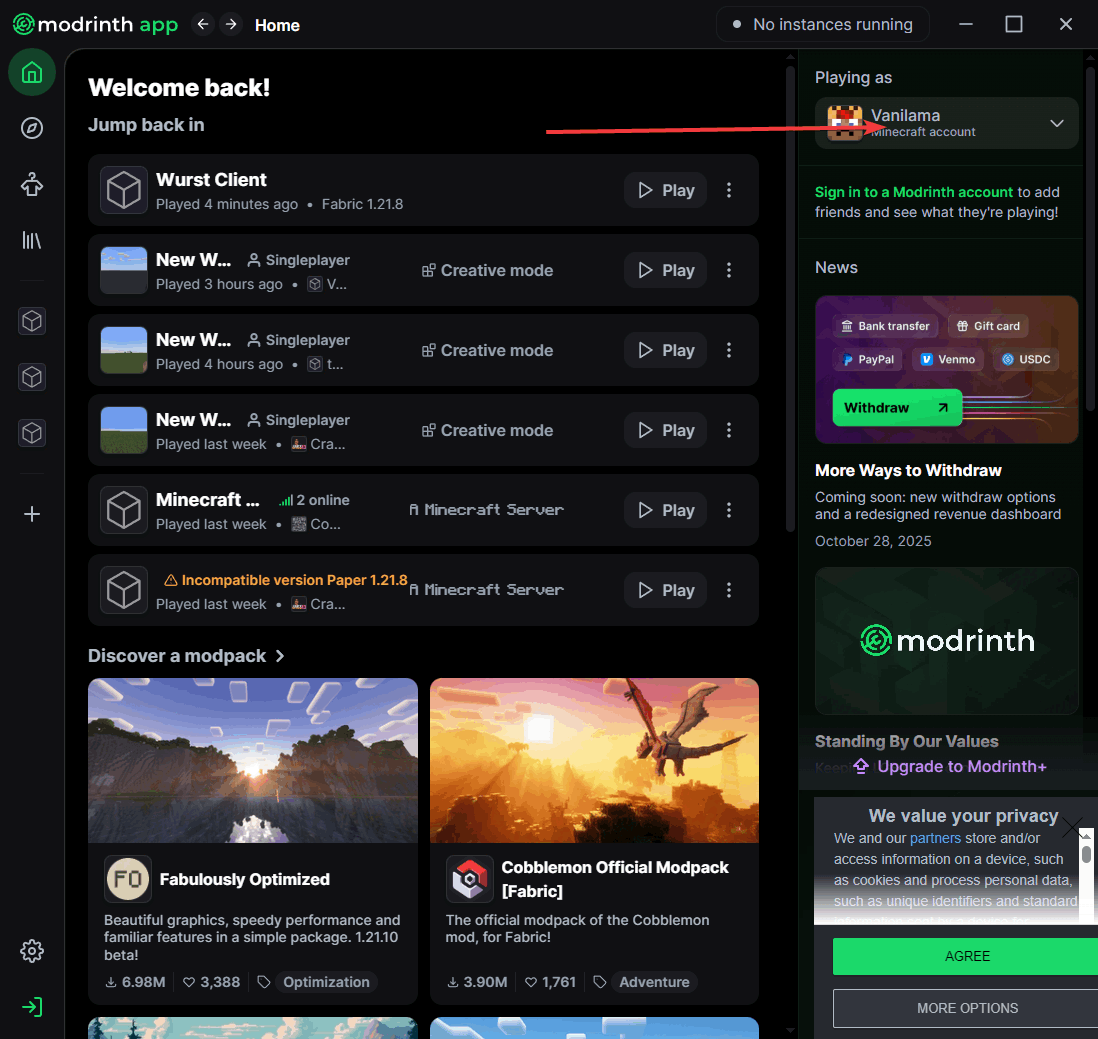
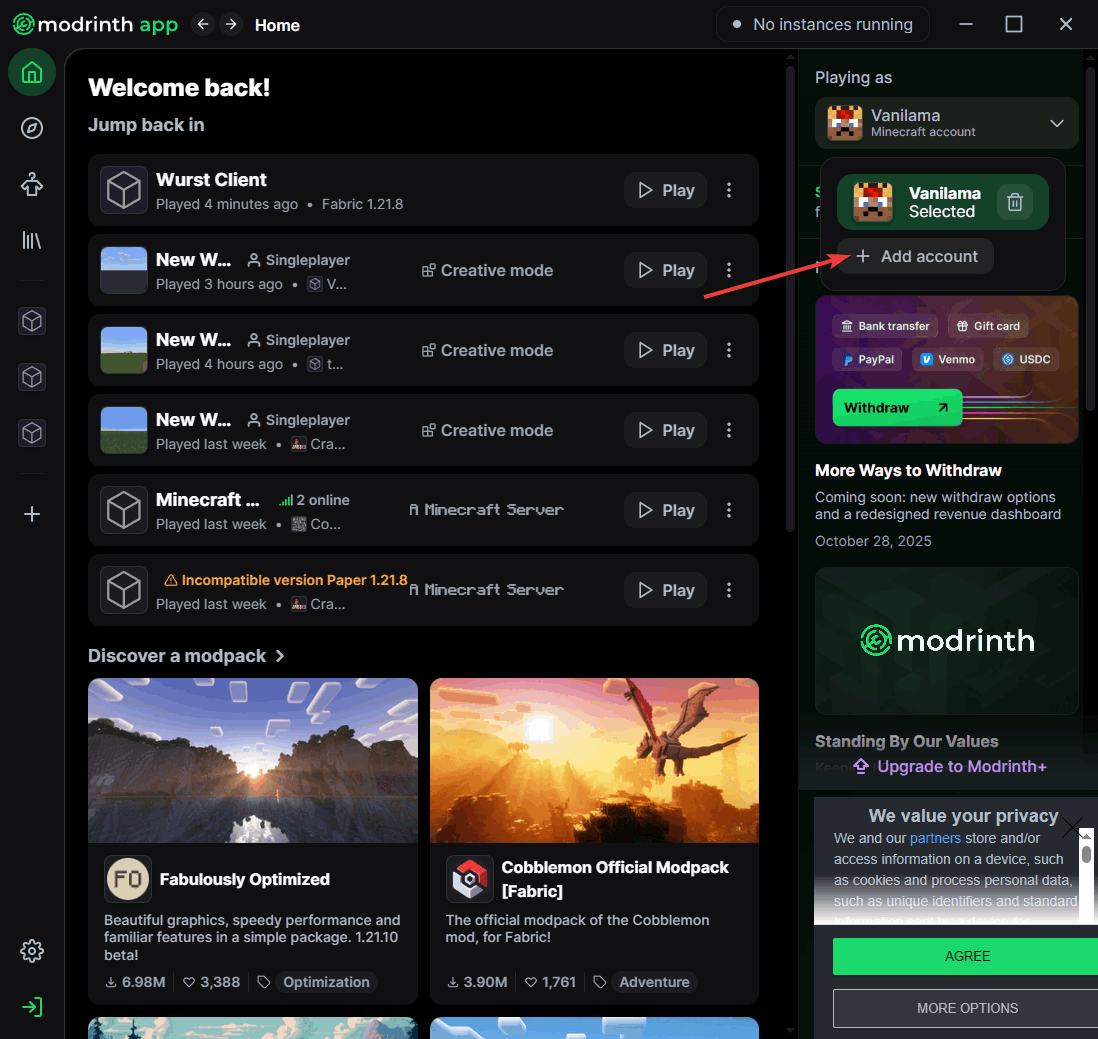
Open the app and sign in with the Microsoft account that owns Java Edition. The login opens in a browser window and returns to the app when it finishes. You can add several accounts and switch between them from the avatar menu, which is handy if you play on a family account.
Step 3. Create the modpack
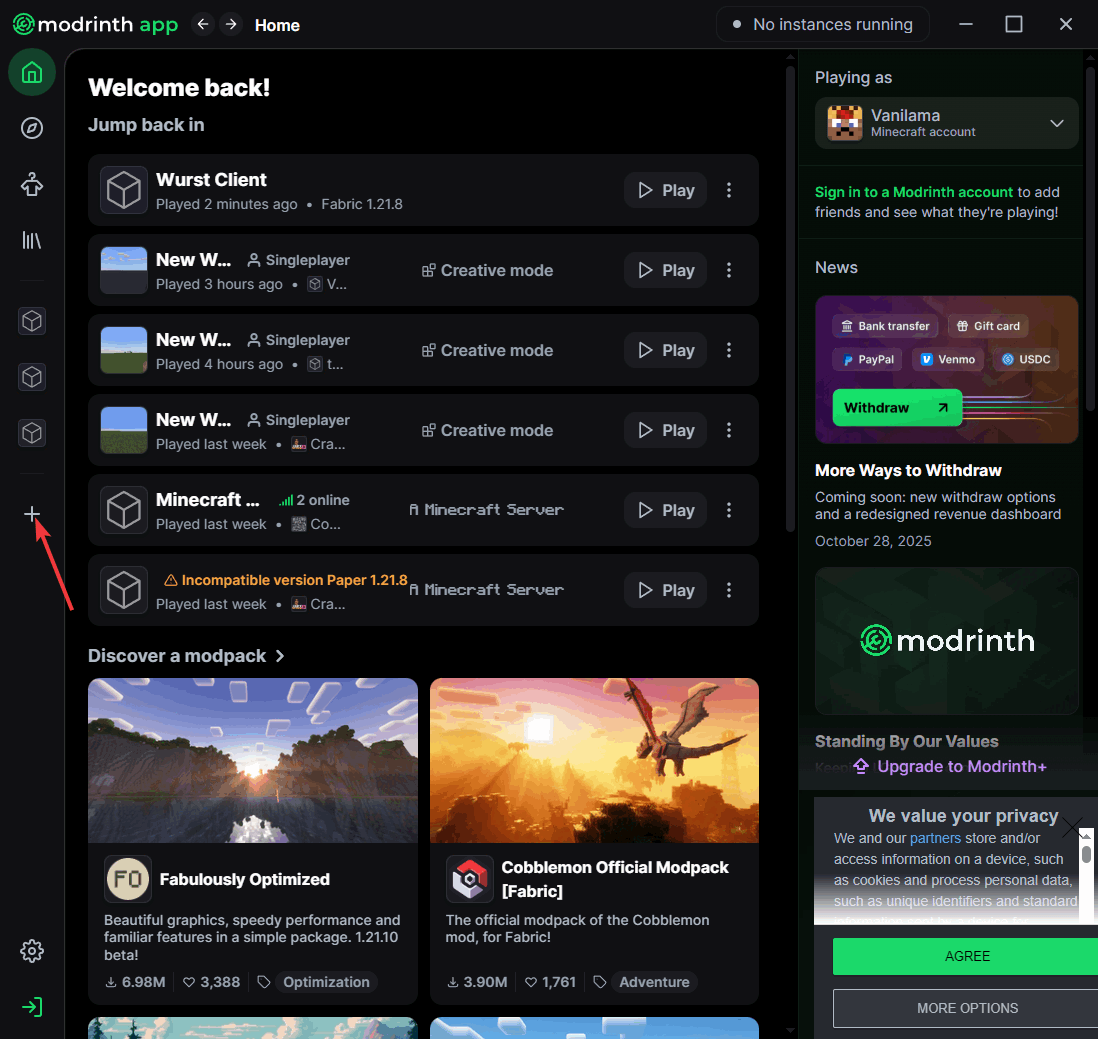
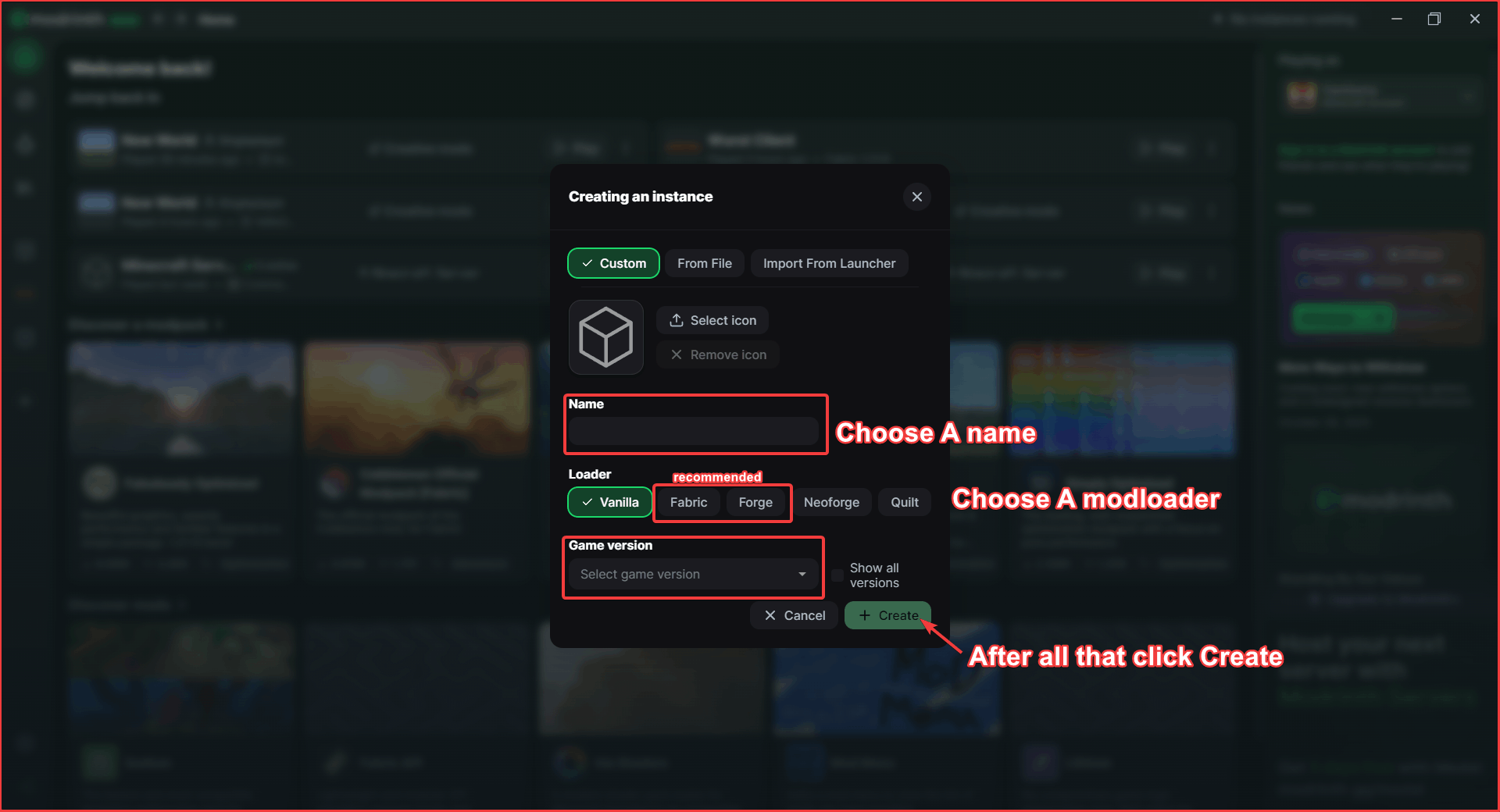
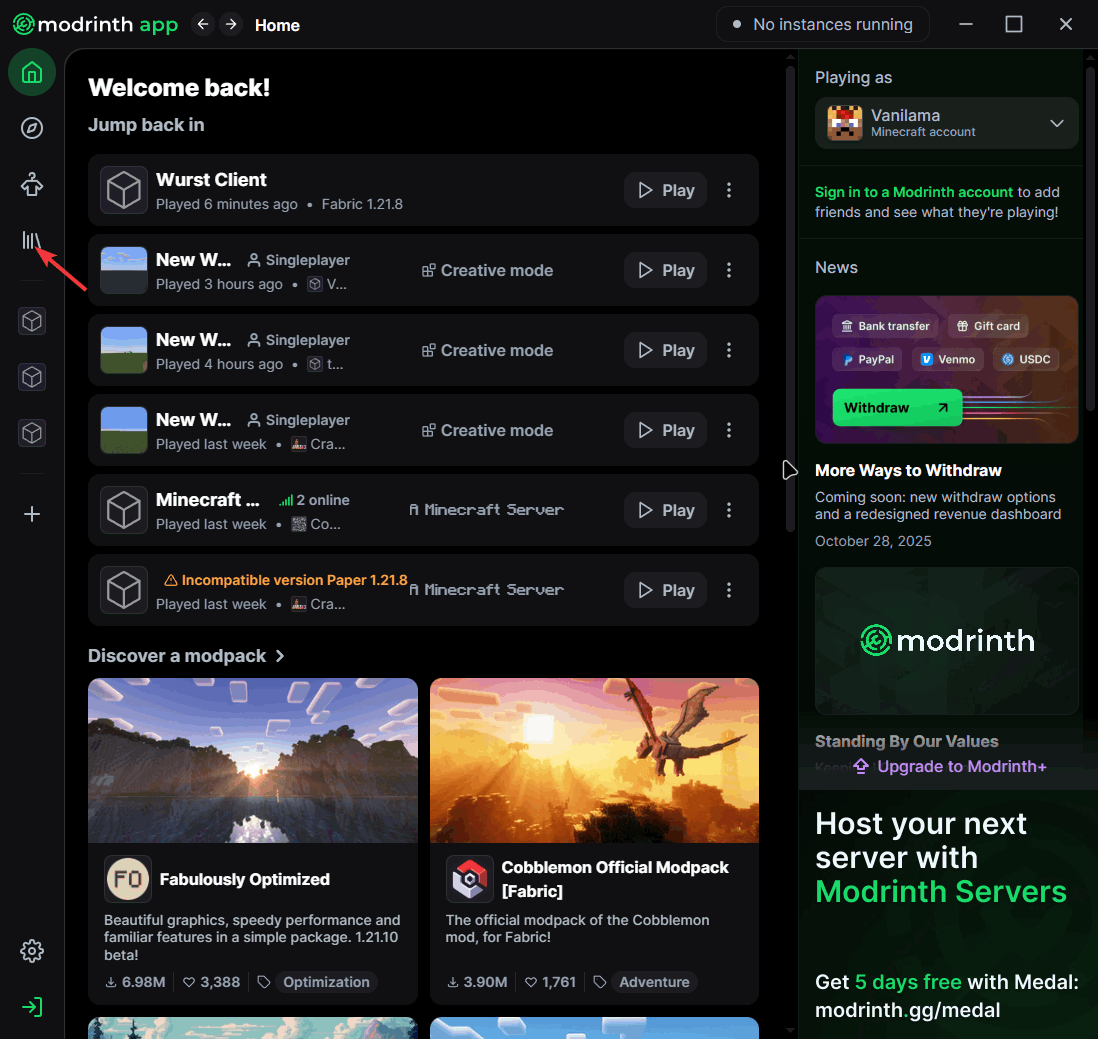
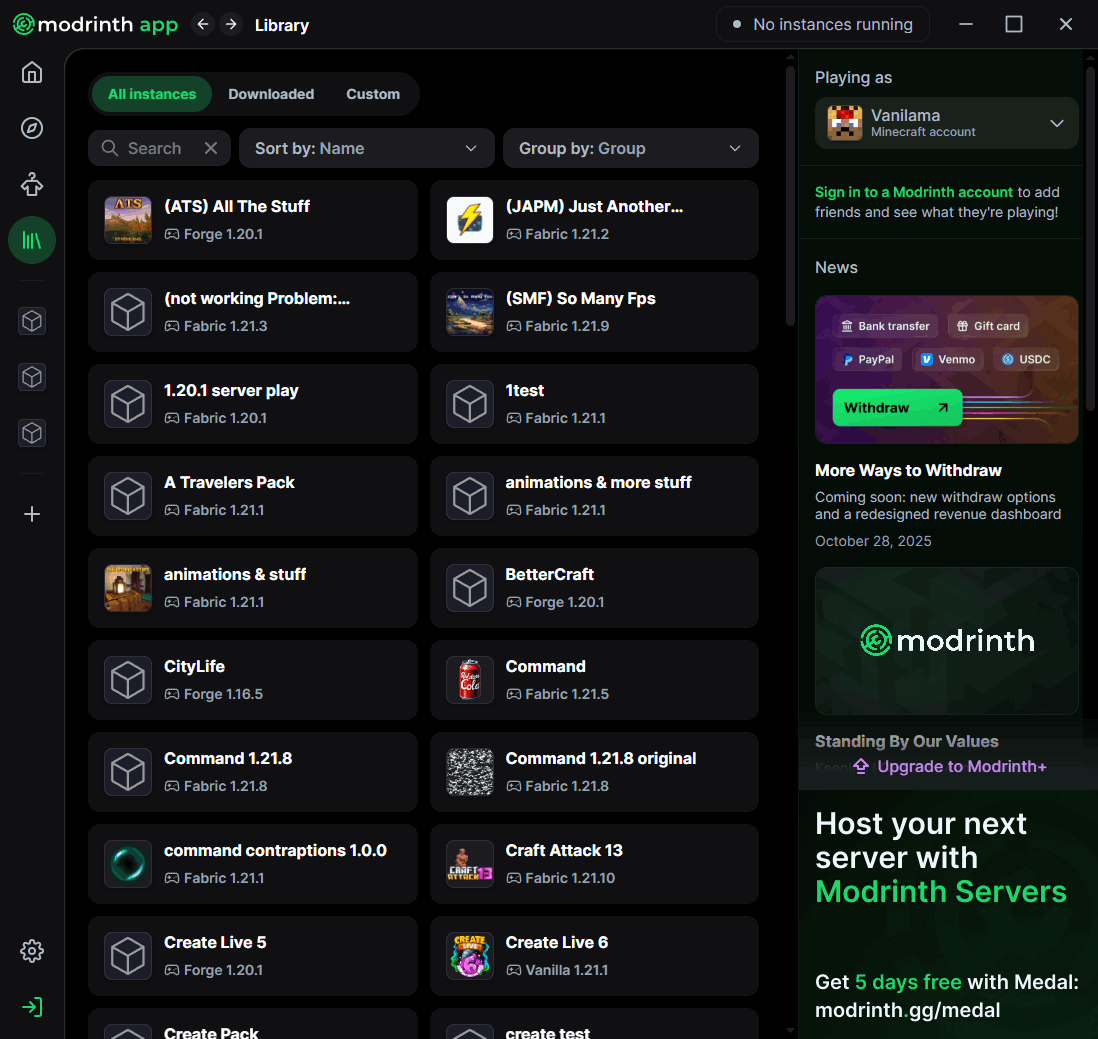
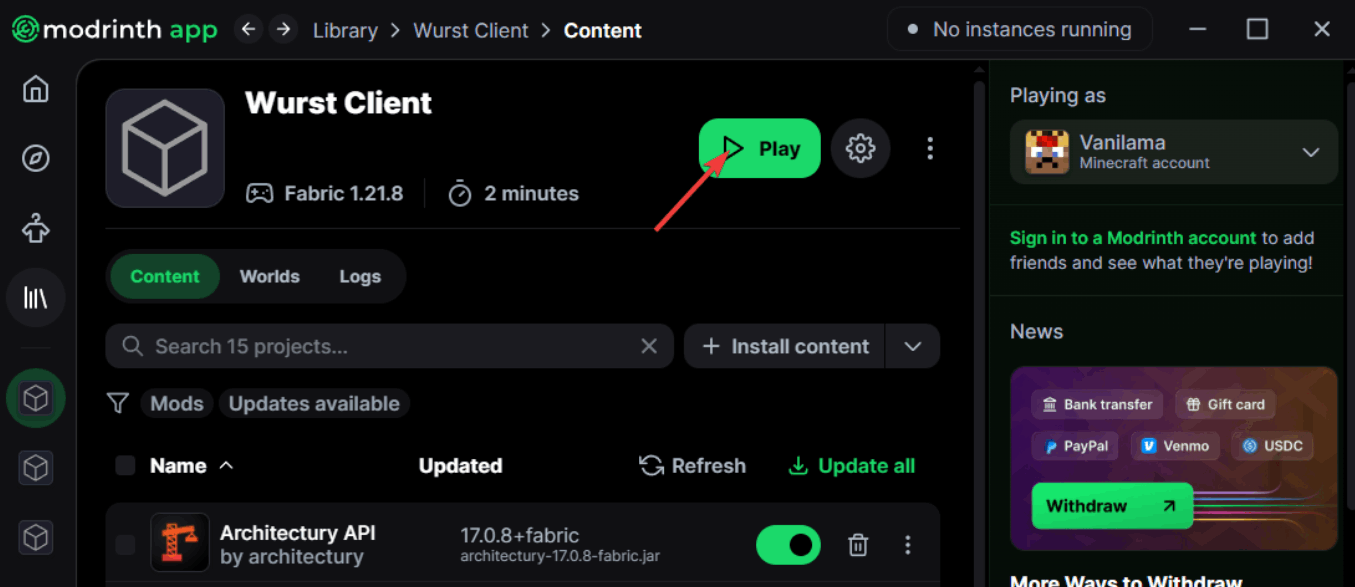
Click Create new instance on the home screen, give the pack a name you will recognise later, then set the Minecraft version and modloader you chose above. Modrinth downloads the loader for you. Open the Library tab and click your new pack to open its page — do not press Play yet, since launching once before adding mods just wastes a few minutes.
Step 4. Add mods & shaders
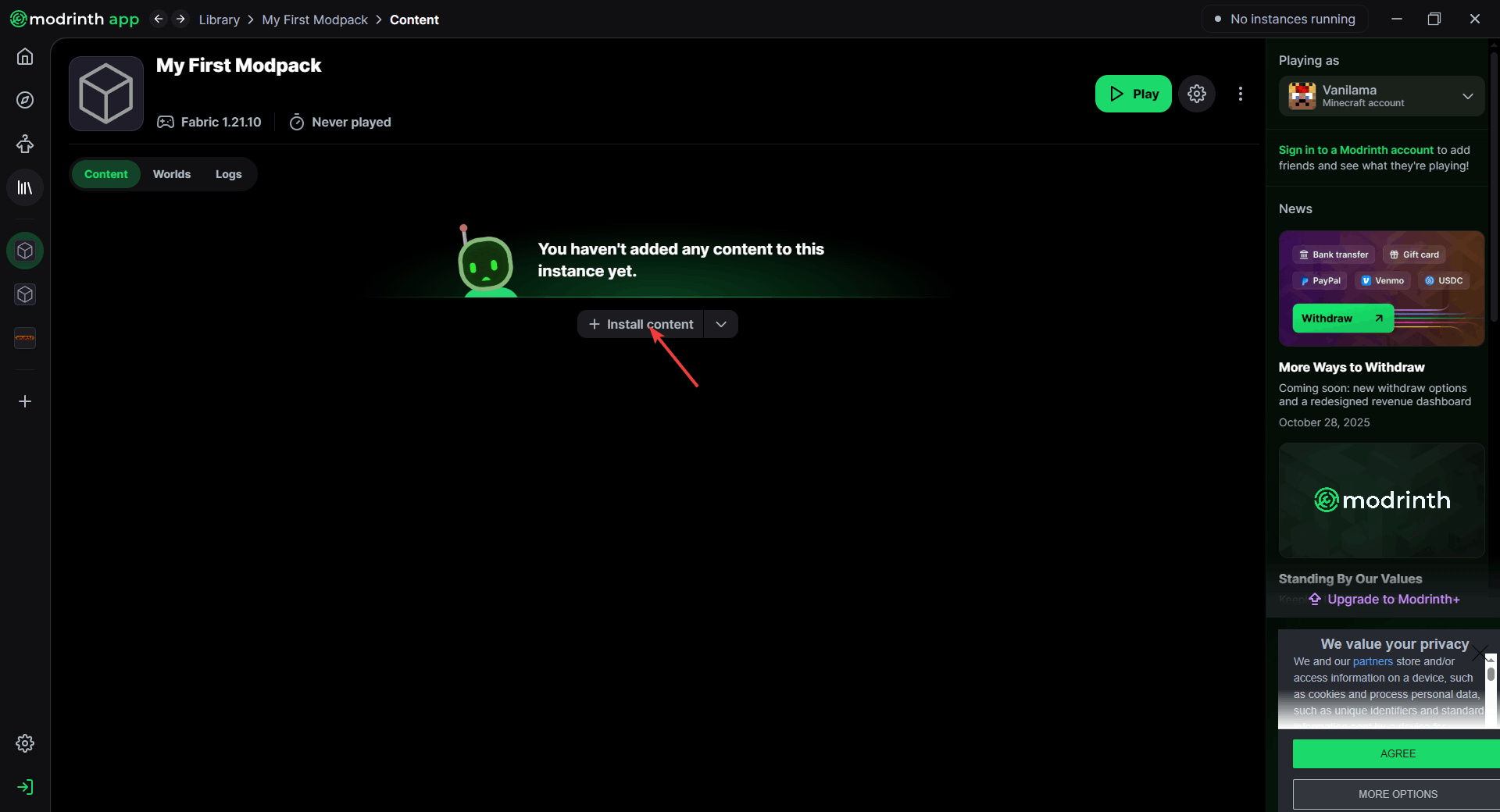
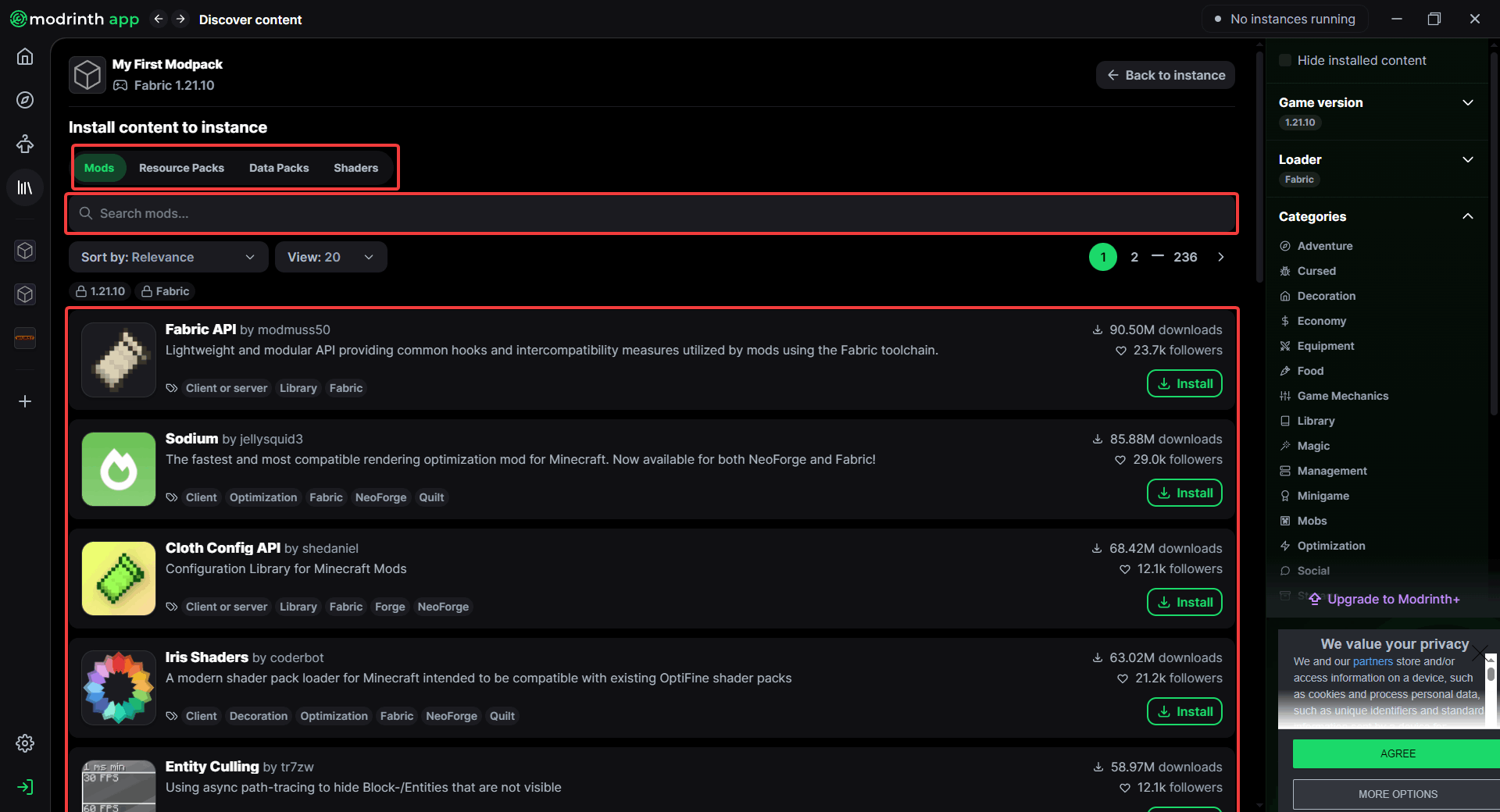
Click Install content inside the instance. The search is already filtered to your version and loader, and the tabs switch between Mods, Resource Packs, Data Packs, and Shaders. When a mod needs a library, Modrinth installs it with one prompt — accept it, because declining leaves the pack in a state that crashes on launch.
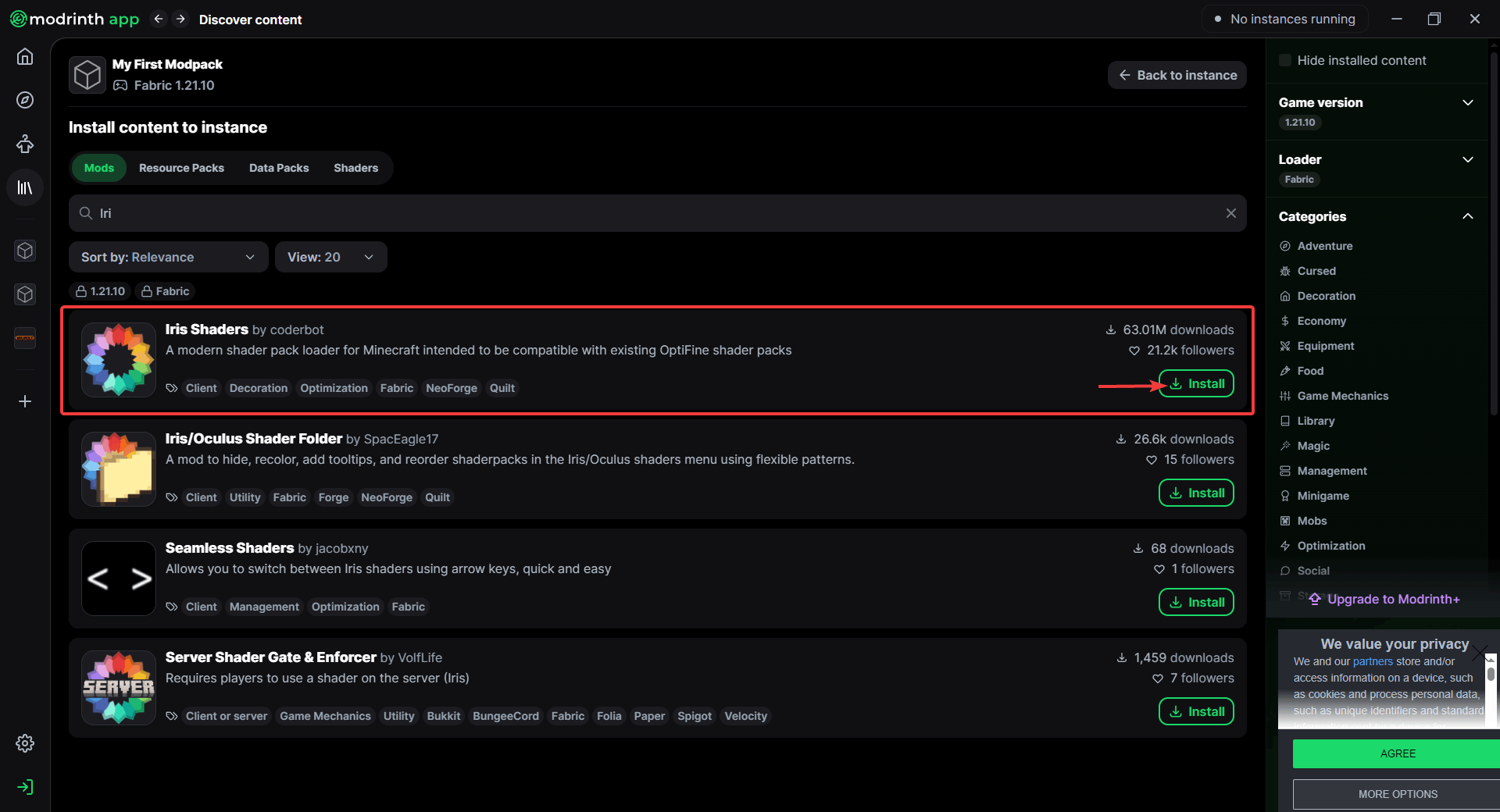
For shaders you need a shader loader first: Iris on Fabric or Quilt, Oculus on Forge. Install that, then install shader packs from the Shaders tab and enable one in Video Settings → Shaders once the game is running. Add mods in small batches and launch between batches; finding the one bad mod out of five is far easier than out of fifty.
Starter mods worth adding first
Install performance and quality-of-life mods before content mods. They cost almost nothing to run, they rarely conflict, and they make the frame rate headroom for everything you add afterwards.
Performance (Fabric/Quilt)
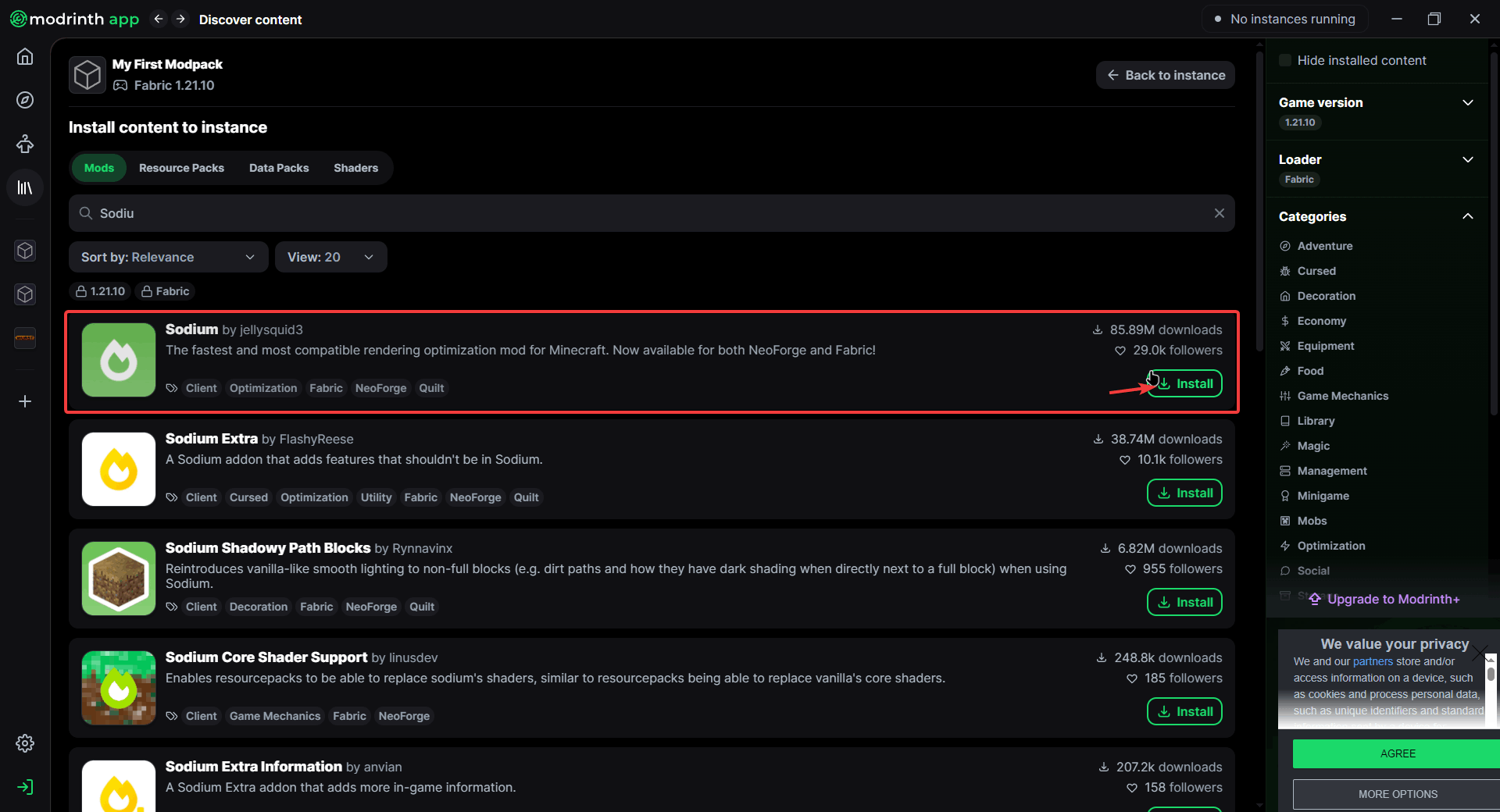
- Sodium — rendering rewrite, the biggest FPS win
- Lithium — game logic optimisation, no visual change
- FerriteCore — cuts memory use
- Iris — shader support, works with Sodium
On Forge/NeoForge use Embeddium and Oculus instead.
Quality of life
- Mod Menu — in-game list and config for every mod
- Jade — shows what block or mob you are looking at
- AppleSkin — hunger and saturation values
- Xaero's Minimap — minimap and waypoints
These are client-side, so leave them out of any server copy of the pack.
Step 5. Allocate RAM and launch
Open the instance's options and set memory before the first launch of a large pack. Roughly 4 GB suits 20 to 60 mods, and 6 to 8 GB covers 100+ mods or shaders. More is not better — oversized heaps make garbage collection pauses longer, and Minecraft rarely benefits past 8 GB. Keep at least a third of your system RAM free for the OS.
Then press Play. The first launch is slow because assets and the loader are still downloading. If it crashes, open the logs from the instance page — the last few lines almost always name the mod at fault.
Using your modpack on a server
An .mrpack is a client pack, so you cannot upload it to a host and expect it to run. Set the server up separately with the same Minecraft version and the same loader, then copy across only the mods that have a server side. Client-only mods — shaders, minimaps, Mod Menu, most UI tweaks — will crash a server or simply do nothing.
Every player still needs the client pack installed, and version mismatches between client and server show up as a rejected connection rather than a clear error. Our server RAM calculator helps size the host once you know how many mods and players you are running.
Updating without breaking things
- Duplicate before big changes. Right-click the instance and duplicate it, then experiment on the copy. Reverting a broken pack takes seconds this way.
- Back up worlds separately. Copy the saves folder out of the instance before adding or removing content mods. Removed mods can leave a world unloadable.
- Update mods in the Installed tab and launch once before touching a real world, so a bad update never lands mid-session.
- Jumping Minecraft versions is a rebuild, not an update. Some mods will not have a build for the new version. Create a fresh instance and re-add mods rather than forcing the old one.
Troubleshooting common problems
| Symptom | Fix |
|---|---|
| Crashes instantly, log mentions a missing dependency | Install Fabric API (Fabric), Quilted Fabric API (Quilt), or the library mod named in the log, then relaunch. |
| A mod is greyed out or won't install | It has no build for your Minecraft version or loader. Change the version filter on the project page or drop the mod. |
| Game freezes then closes, log says OutOfMemoryError | Raise memory in the instance options by 2 GB. If it still happens, remove world-generation heavy mods. |
| Shaders option is missing from Video Settings | Iris (Fabric/Quilt) or Oculus (Forge) is not installed or failed to load. Reinstall it, then put shader zips in the instance's shaderpacks folder. |
| Existing world won't load after removing a mod | The world still references that mod's blocks or items. Put the mod back, or use a backup copy of the save. |
| Friend's import fails or has different mods | Re-export after every change. Old .mrpack files pin the mod versions from the day you exported them. |
When nothing obvious stands out, halve the pack: disable half the mods, launch, and repeat on whichever half still fails. Four or five launches narrows 100 mods down to the culprit.
Frequently asked questions
How do I make a modpack in Modrinth?
Install the Modrinth App, sign in with your Microsoft account, click Create new instance, choose a Minecraft version and a modloader like Fabric, then use Install content to add mods and shaders. Press Play to launch, and Export to save it as an .mrpack file you can share.
Is Modrinth free and is it safe?
The Modrinth App and every project on it are free, and the app is open source. Uploads are public and community-moderated, and the app downloads files straight from the project page rather than a mirror, so there are no ad-gate redirects. Stick to projects with real download counts and match versions to your Minecraft and loader.
Which modloader should I pick: Fabric, NeoForge, Forge, or Quilt?
Pick Fabric for lightweight, performance-focused packs on current versions. Pick NeoForge for modern 1.20.2+ packs built around big content mods, and Forge for anything 1.20.1 or older. Quilt is a Fabric-compatible alternative. You cannot mix loaders in one instance, so choose before you add mods.
How much RAM should I give my modpack?
Around 4 GB covers a light pack of 20 to 60 mods. Use 6 to 8 GB for 100+ mods or shaders. Never give Minecraft more than about two thirds of your total system RAM, and do not go above 8 GB without a reason — extra memory makes garbage collection pauses worse, not better.
Can I make a Modrinth modpack for Bedrock Edition?
No. Modrinth modpacks target Minecraft: Java Edition because they rely on Java modloaders. Bedrock only supports add-ons, behaviour packs, and resource packs, which are installed through the game itself rather than the Modrinth App.
How do I share my modpack with friends?
Open the instance, choose Export, tick the mods you want included, and save the .mrpack file. Send that file to your friends — they drag it into their Modrinth App or use Add instance → From file, and the app downloads every mod at the exact versions you used.
Can I add a mod that isn't on Modrinth?
Yes. Download the .jar file yourself, then open the instance folder from the app and drop the jar into the mods folder. It will load normally, but it will not be bundled as a download link when you export the pack — Modrinth stores manual jars as included files or skips them, so tell your friends about it.
Can I use my modpack on a Minecraft server?
An .mrpack is a client pack, so you cannot drop it onto a server as-is. Install the same loader and Minecraft version on the server, then copy over only the server-compatible mods and leave client-only mods like shaders, minimaps, and UI tweaks out.
Why does my modpack crash on launch?
The usual causes are a missing dependency such as Fabric API, a mod built for a different Minecraft version, two mods edited the same thing, or too little RAM. Remove the last mod you installed and relaunch. If it starts, that mod is the problem; check its project page for the correct version.
Modrinth vs CurseForge — which should I use for modpacks?
CurseForge has the larger legacy library and more old packs. Modrinth is faster, open source, and has cleaner version filtering, which makes building your own pack simpler. Most modern mods publish on both, and the Modrinth App can also import CurseForge packs from a zip.
Keep going
- Optimizing Minecraft performance — video settings and JVM tuning to pair with your performance mods.
- Server RAM calculator — size a host for a modded server before you rent one.
- Resource pack merger — combine texture packs into one file for your pack.
- All CraftMC guides